
Word
DOCX · ODT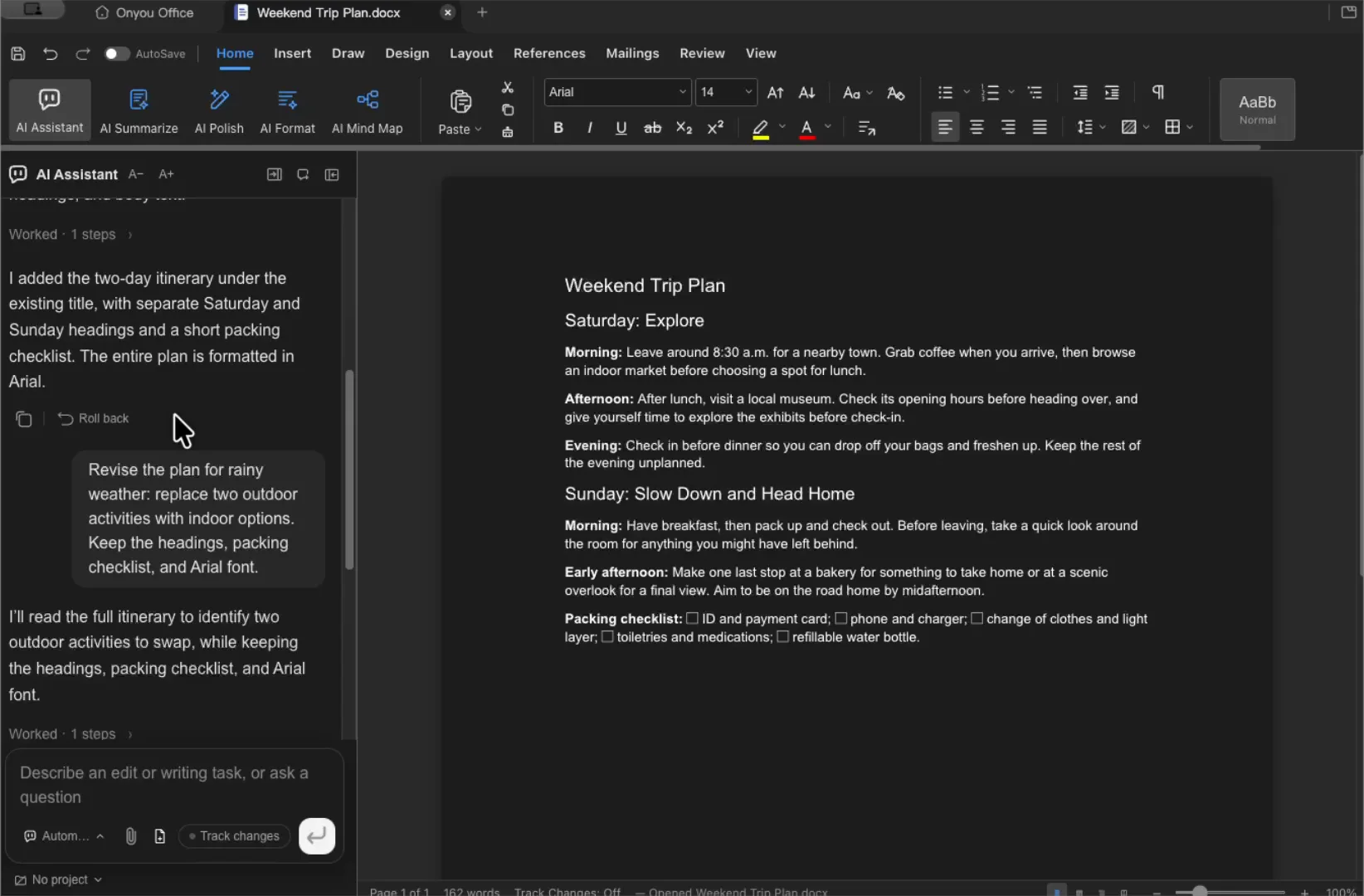
- Organize paragraphs, headings, lists, and tables.
DOCX and ODT support different formatting and editing tools.
Watch the Word demo →See what you can open, edit, save, and export in each editor.
Scroll the table sideways to see save and export formats.
| Editor | Open | Save for editing | Example exports |
|---|---|---|---|
| Word | DOCX · ODT | DOCX · ODT | PDF · HTML · Markdown · PNG |
| Excel | XLSX · XLSM · XLS · CSV · TSV | XLSX · XLSM · original CSV | Current sheet as CSV · PDF |
| PowerPoint | PPTX | PPTX | PDF · PNG per slide |
| Word · Excel · PowerPoint · Markdown · EPUB · PNG | |||
| HWP | HWP · HWPX | HWP · HWPX | |
| Markdown | MD · MARKDOWN | MD · MARKDOWN | Word · ODT · PDF |
| HTML | HTML · HTM | HTML · HTM | Word · ODT · PDF · standalone HTML |
| Mind map | XMIND | XMIND | PNG · PDF · Markdown outline |
| Diagram | DRAWIO · DIO · import VSDX | DRAWIO · DIO | PNG · SVG · PDF |
| EPUB | EPUB | EPUB | — |
XLS and TSV are converted on open. New editable files are saved as XLSX. You can save an opened CSV in place, but Save As CSV exports the current sheet. CSV export is unavailable for files with macros. VSDX is imported into a new diagram and cannot be saved back as VSDX. Fixed-layout EPUBs do not support body editing.
Some exports require conversion or an AI connection. Results depend on the source file, especially for complex formatting and macros. See how saving and export work →
DOCX and ODT support different formatting and editing tools.
Watch the Word demo →
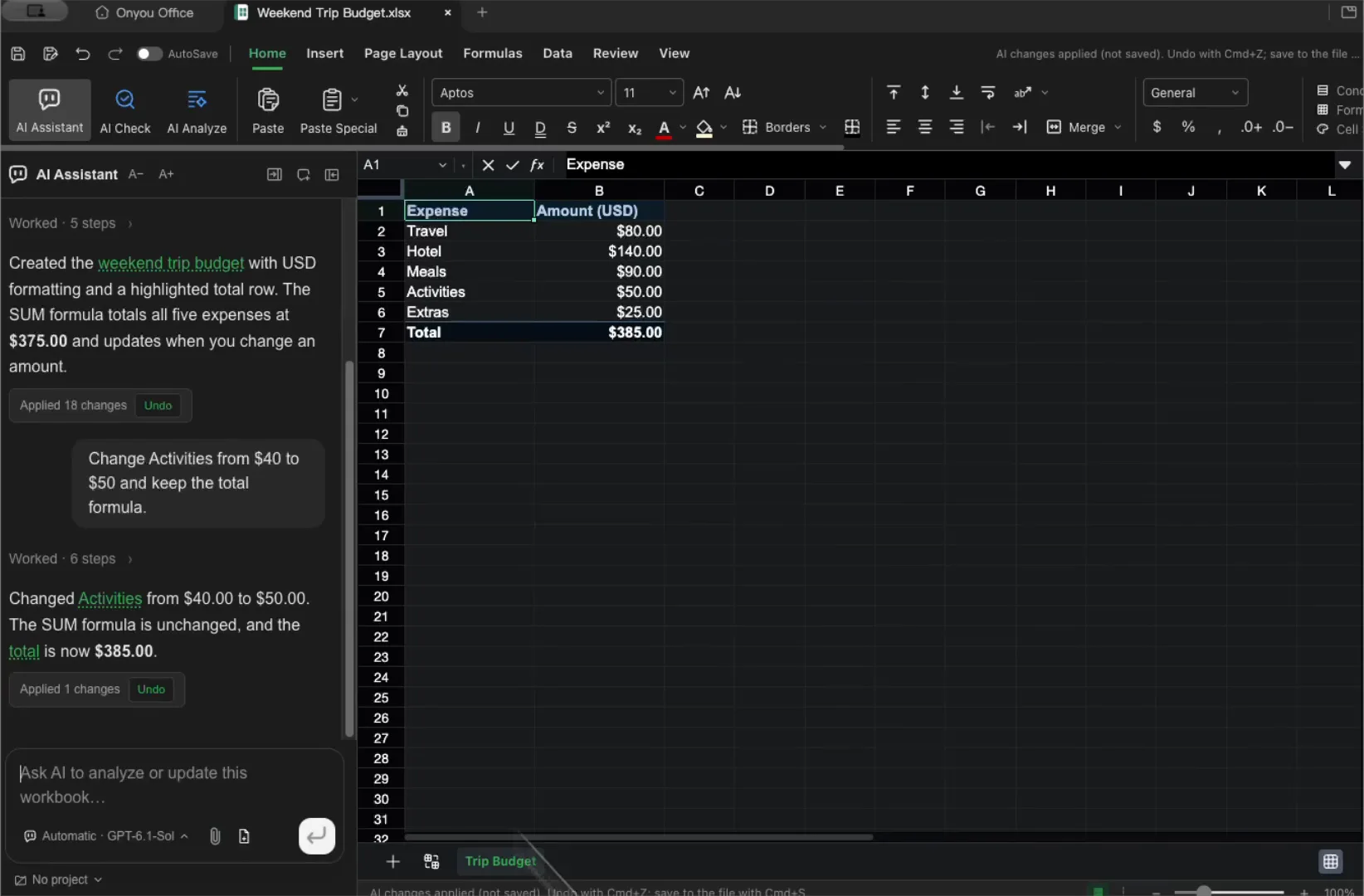
Opening a file does not guarantee macro support or full formatting compatibility.
Watch the Excel demo →
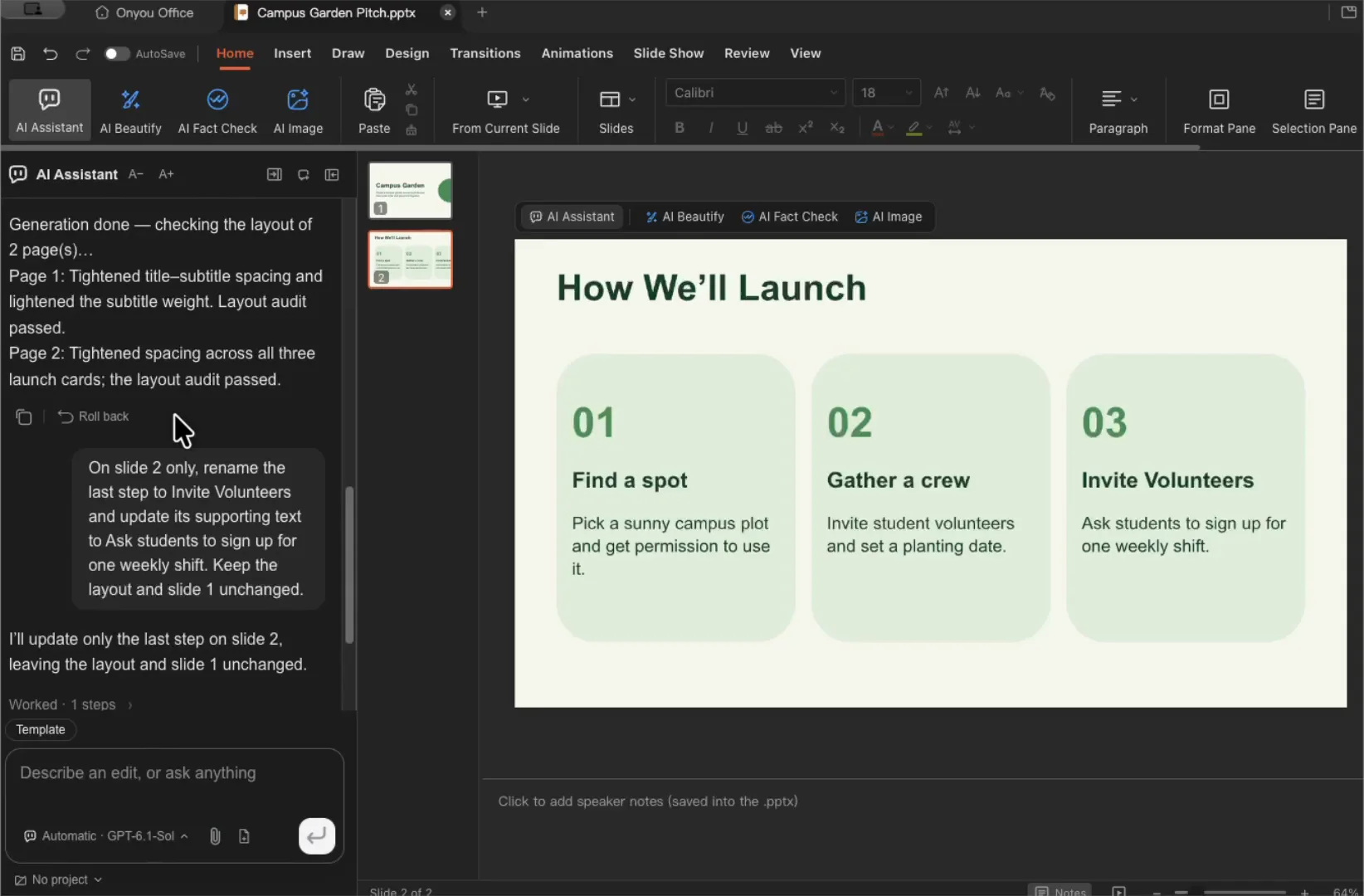
Fonts and complex layouts may look different across systems.
Watch the PowerPoint demo →
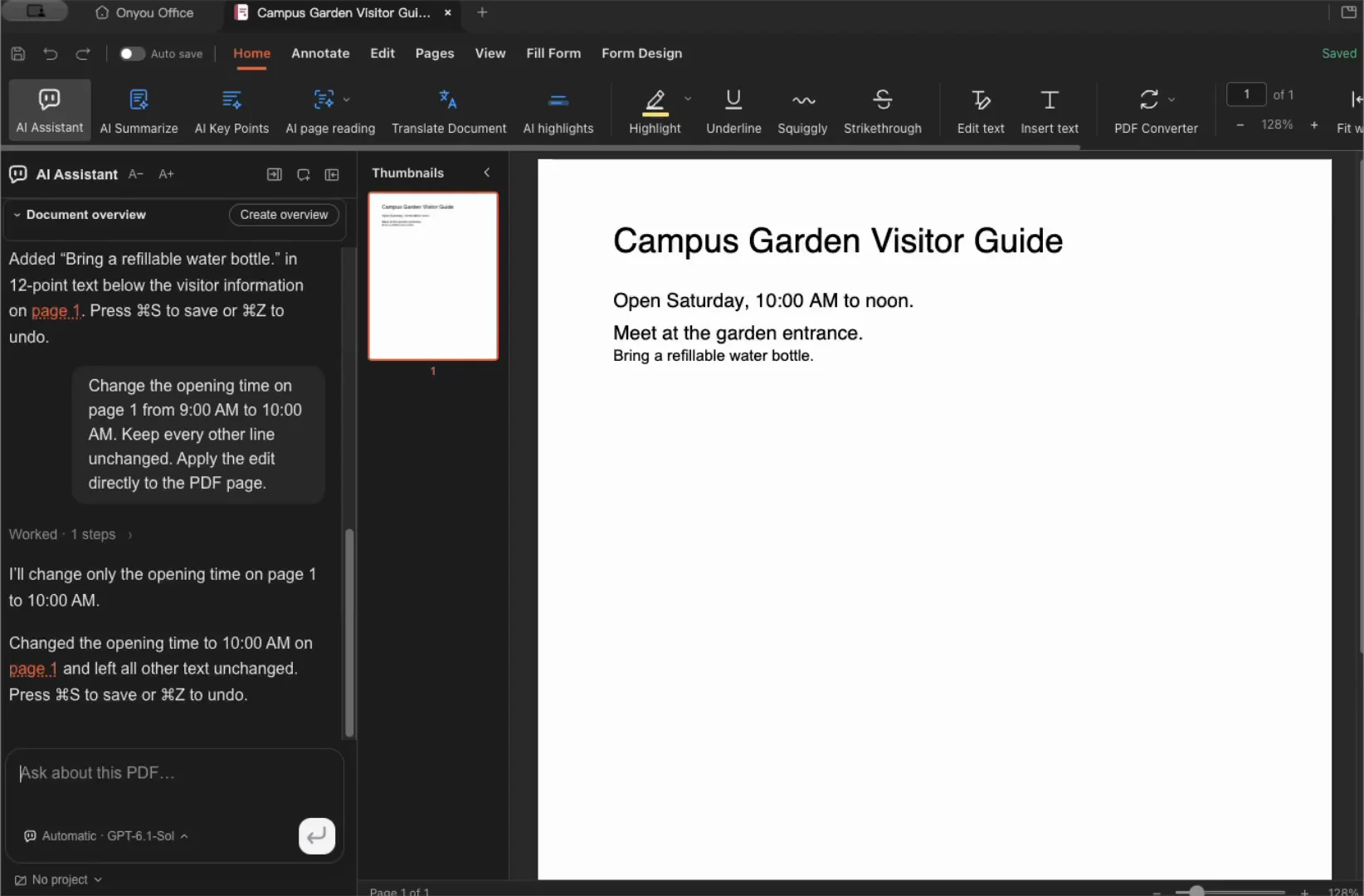
Text PDFs and scans support different reading and editing tools.
Watch the PDF demo →
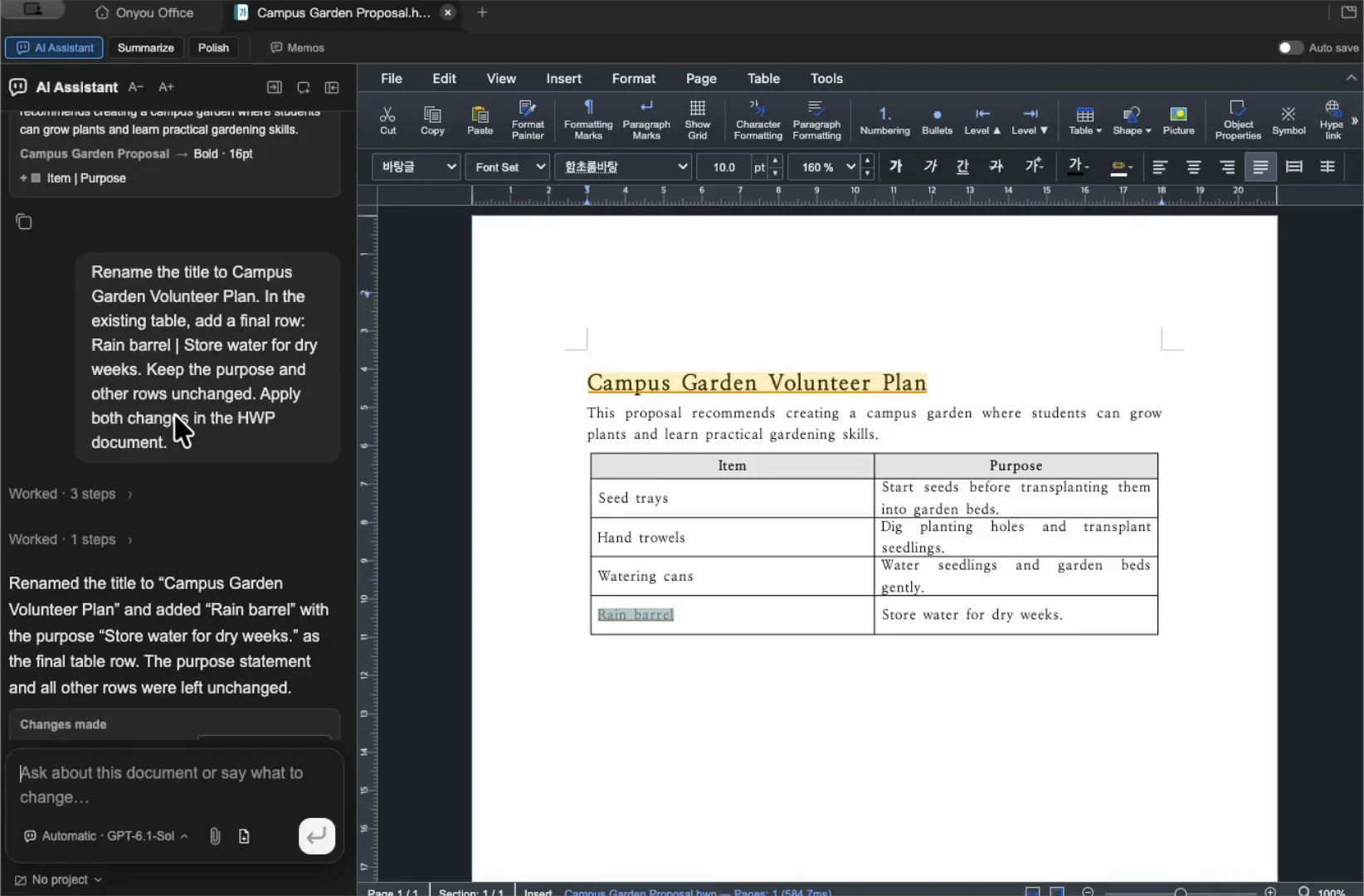
Available tools depend on the structure of the HWP or HWPX file.
Watch the HWP demo →
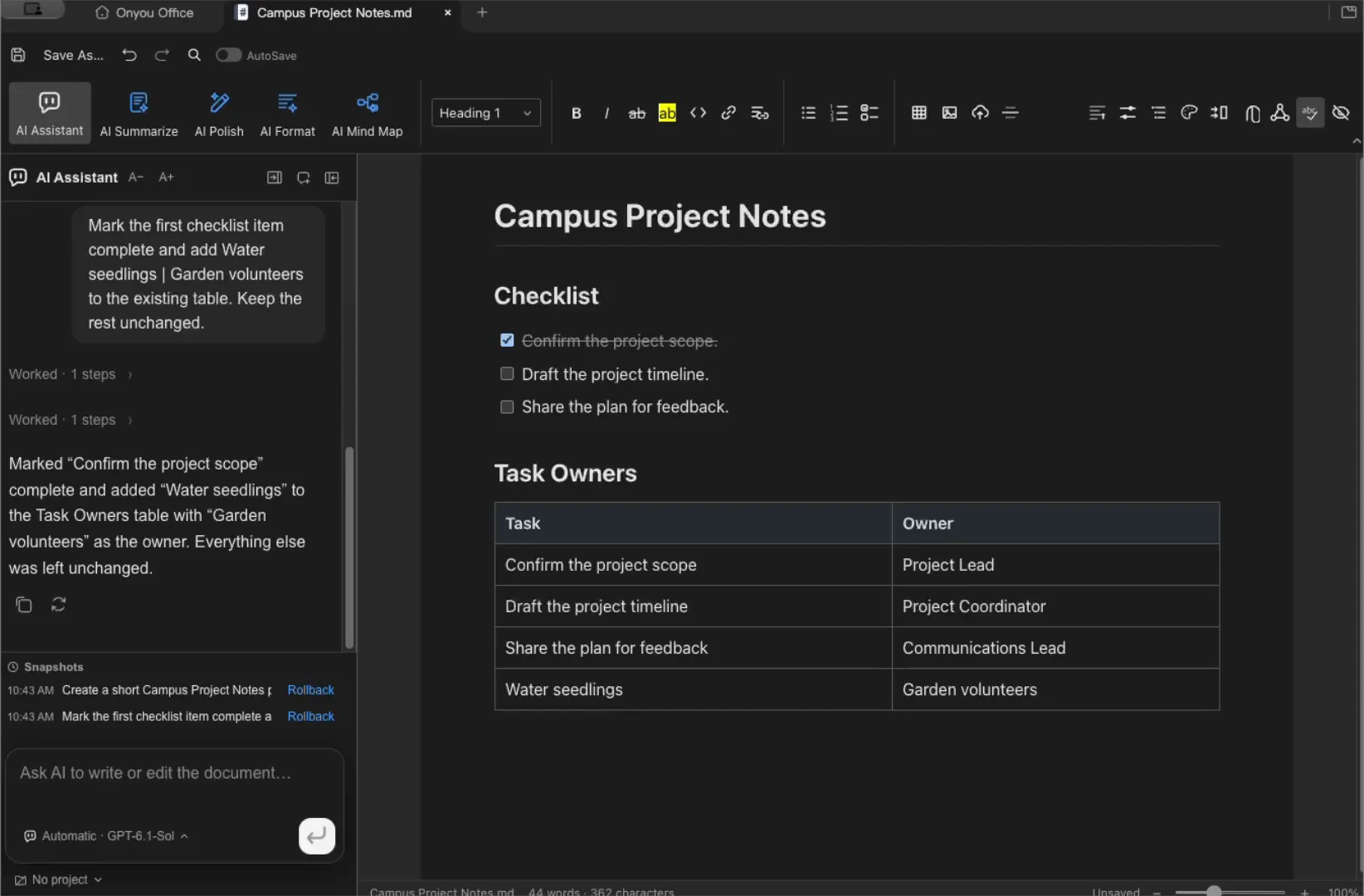
Markdown and plain text can display and save differently.
Watch the Markdown demo →
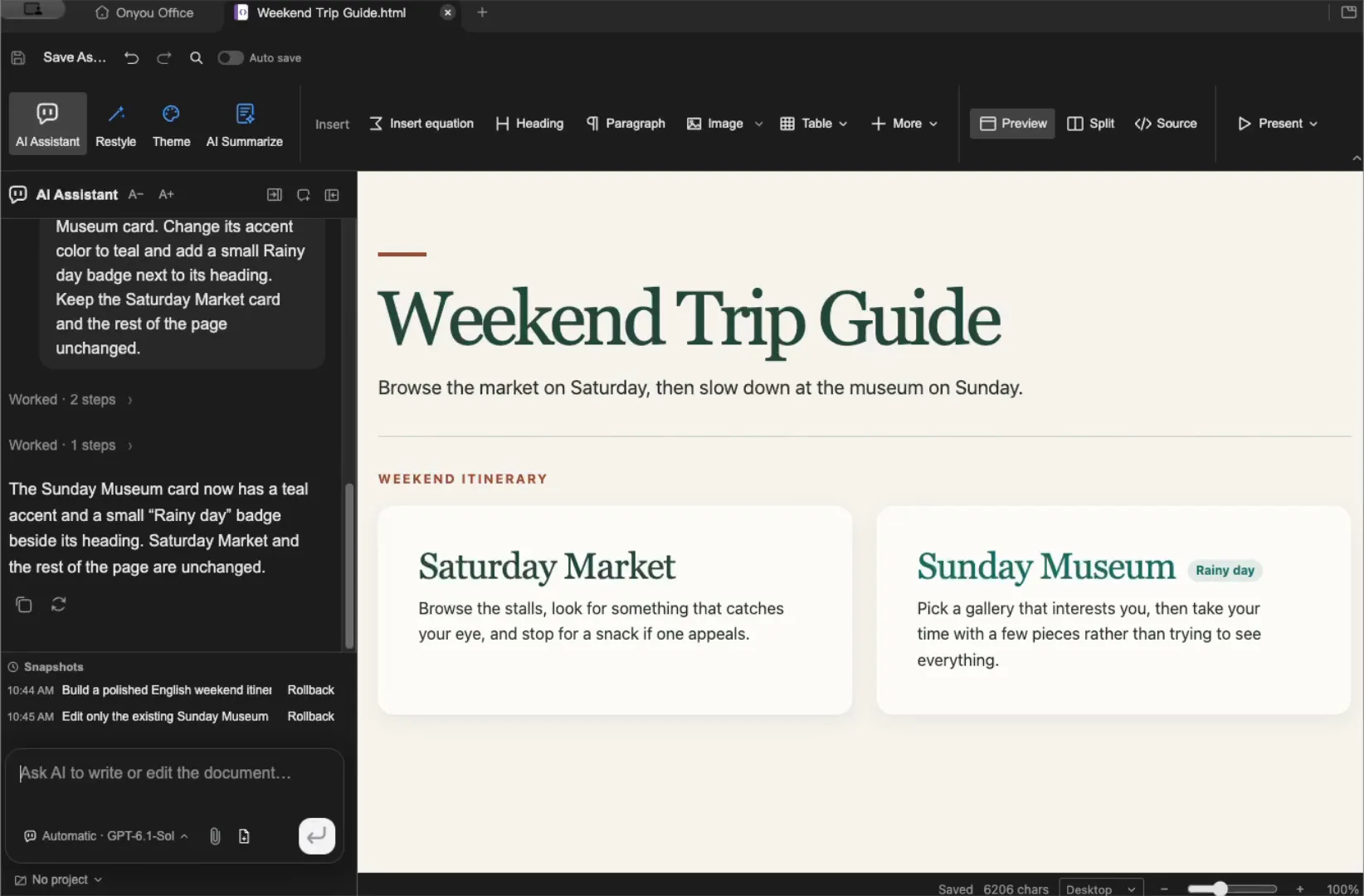
The editor works with HTML files. Website hosting is separate.
Watch the HTML demo →
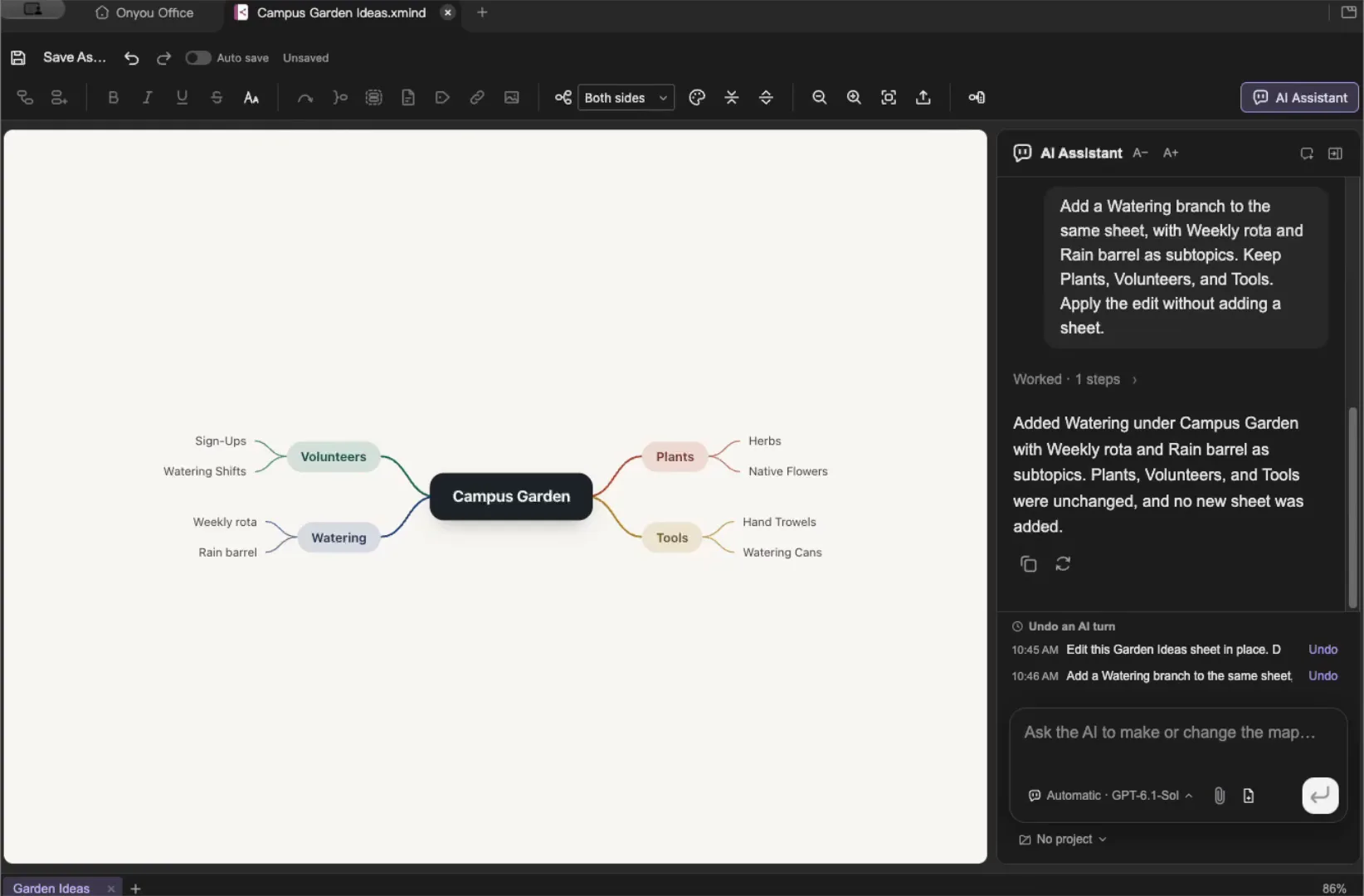
Review complex XMind files after opening them.
Watch the Mind map demo →
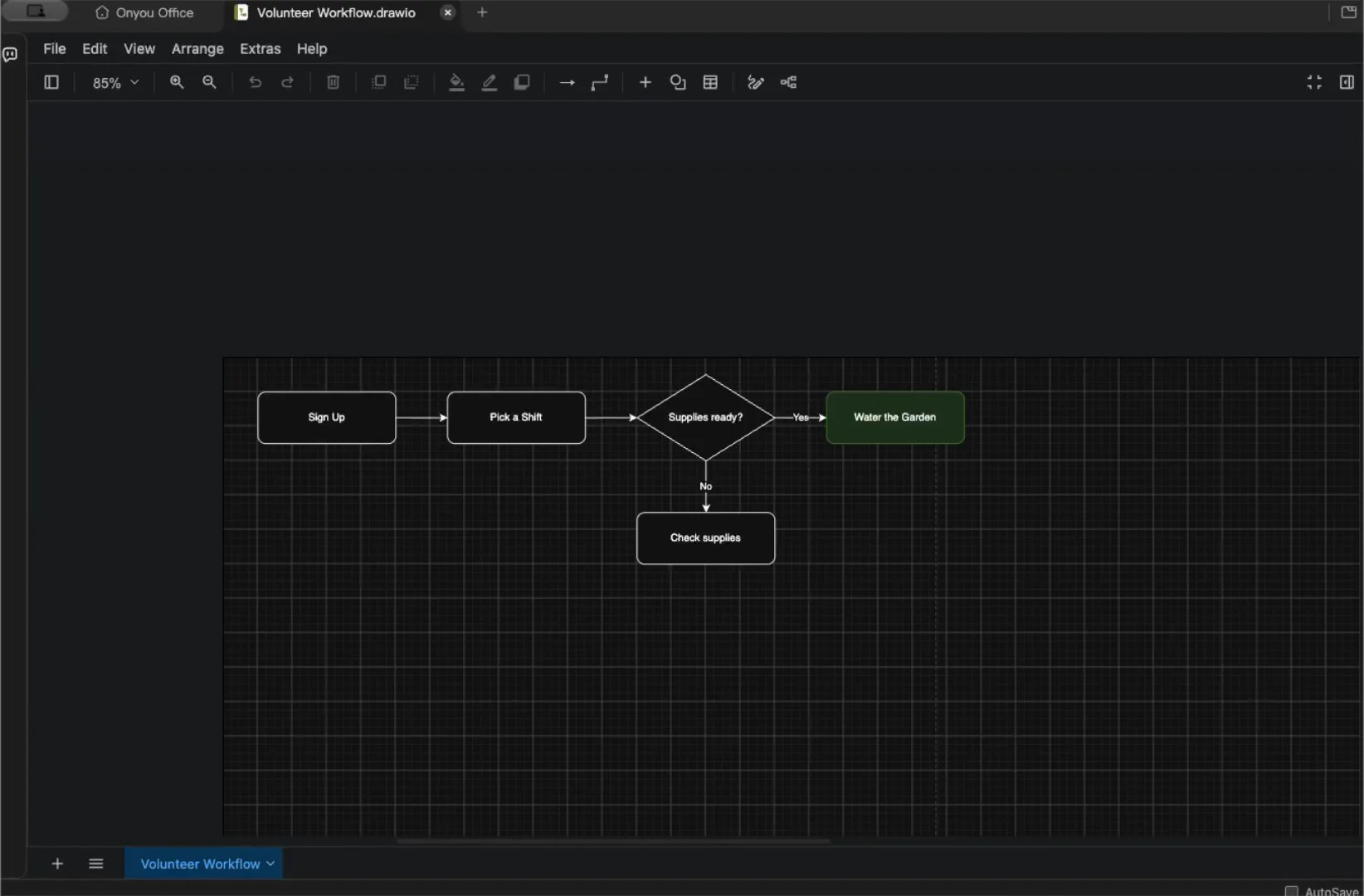
Visio files are imported as new diagrams and cannot be saved back as VSDX.
Watch the Diagram demo →
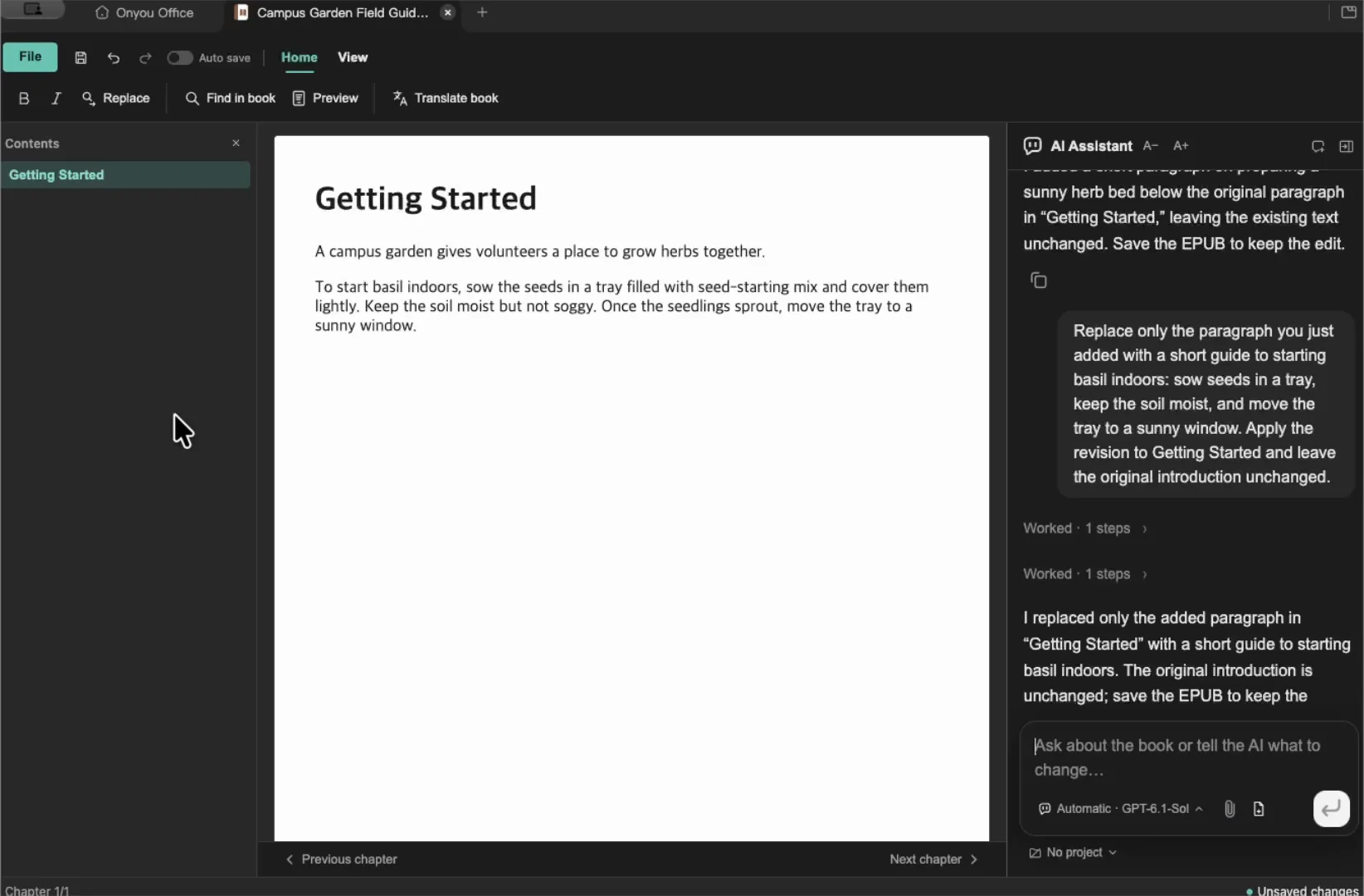
Fixed-layout ebooks do not support body editing.
Watch the EPUB demo →Use the editor’s AI panel to rewrite a paragraph or organize a table. Choose specific source files in Knowledge Vault when you have questions about several documents. In Agent mode, you can also work with files in a selected folder.
Onyou Office is free and open source. AI is optional. Providers set their own fees and limits. Available tools depend on your connection and file format. Review the output and check the saved file.
Connect AI →Get started with the AI agent →Split tabs side by side or top to bottom to view two files together. Keep related files, instructions, and conversations in a project.
Choose the files you want Knowledge Vault to use, then follow the answer’s sources to check the original text.
Ask a question about selected files →